MQTT Client for Windows
TestMQTT for Windows: a free desktop MQTT client for Windows 10 and 11. Test brokers over TCP, TLS and WebSockets — including brokers on localhost and your LAN.
Version 1.0.0 ·
Download TestMQTT for Windows
System requirements: Windows 10 or 11
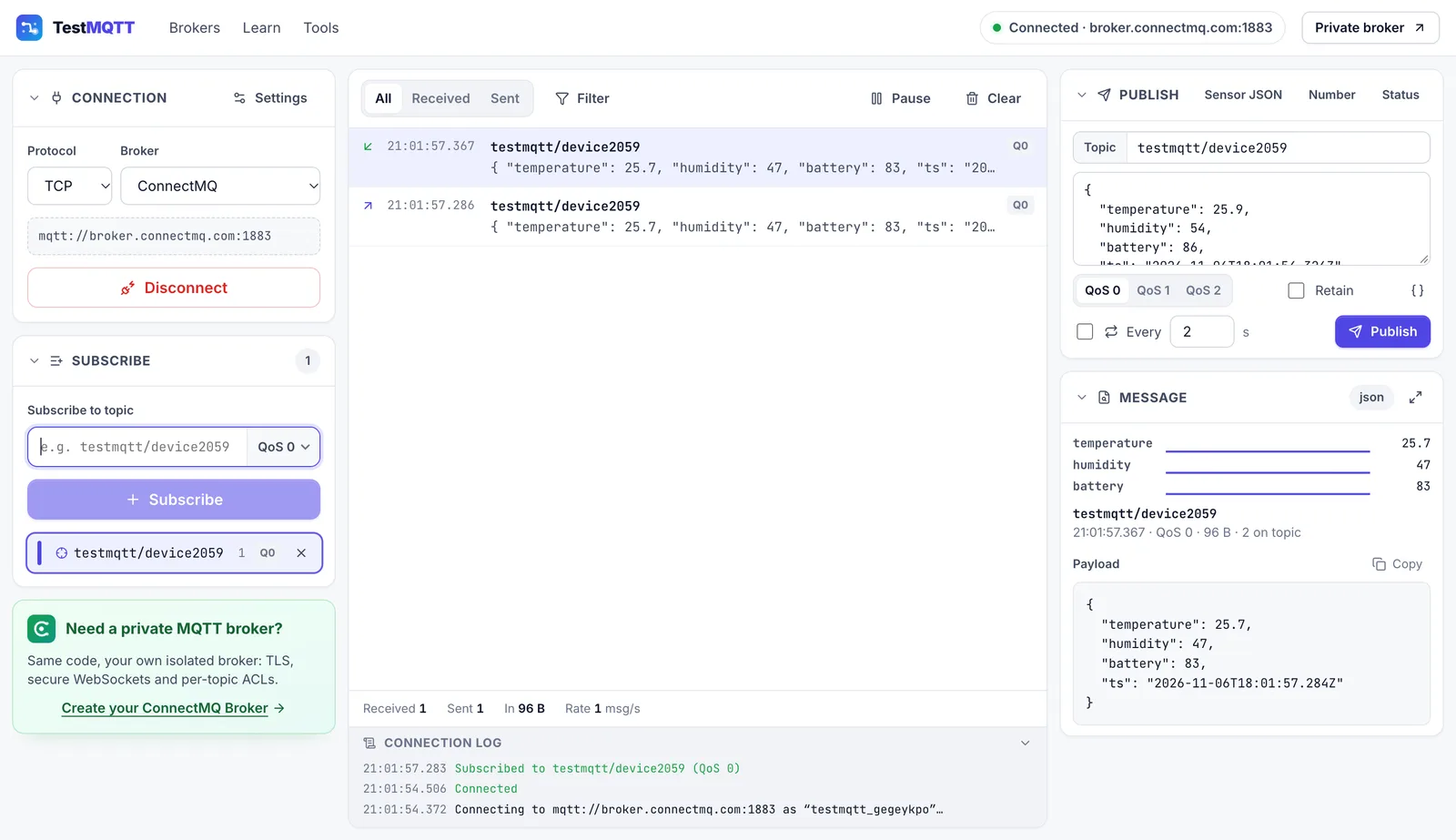
How to install TestMQTT on Windows
- Download the installer: x64 for most PCs, ARM64 for Windows on ARM devices (e.g. Surface Pro X, Snapdragon laptops).
- Run TestMQTT-Setup. If SmartScreen appears, click “More info”, then “Run anyway”.
- Choose where to install; the installer adds Start menu and desktop shortcuts.
- Open TestMQTT, pick a broker and click Connect.
Why the desktop app?
Everything you know from the online client, without the limits of a browser.
Native TCP and TLS
Connects to mqtt:// and mqtts:// directly from your computer. No relay server, no WebSocket listener needed.
Local and private brokers
Reach brokers on localhost, in Docker or on your LAN (192.168.x.x) — impossible from a website.
Self-signed certificates
Switch certificate validation off for test brokers with self-signed or internal certificates.
Same familiar client
The interface of the online client: subscriptions, live message log, JSON viewer, QoS, retain and Last Will.
TestMQTT for other systems
Prefer not to install anything?
The online MQTT client runs in your browser and connects over WebSockets — and over TCP/TLS through our relay.
FAQ
x64 or ARM64?
Almost every Windows PC uses x64. Choose ARM64 only for Windows on ARM devices; check Settings → System → About → System type.
Why does SmartScreen warn about the installer?
This first release is not yet code-signed, so Windows does not know the publisher yet. Click “More info”, then “Run anyway”.
Do I need admin rights?
No. By default TestMQTT installs for your user only. You can also choose another folder during setup.
Is TestMQTT free?
Yes. The desktop app and the online client are free to use, with no account or sign-up.
Which MQTT versions and protocols are supported?
MQTT 3.1.1 and MQTT 5 over TCP (mqtt://), TLS (mqtts://), WebSocket (ws://) and secure WebSocket (wss://).
Does the app store my broker password?
No. Passwords are only used for the current connection and are never saved. The app remembers non-secret settings such as keep-alive and MQTT version.